
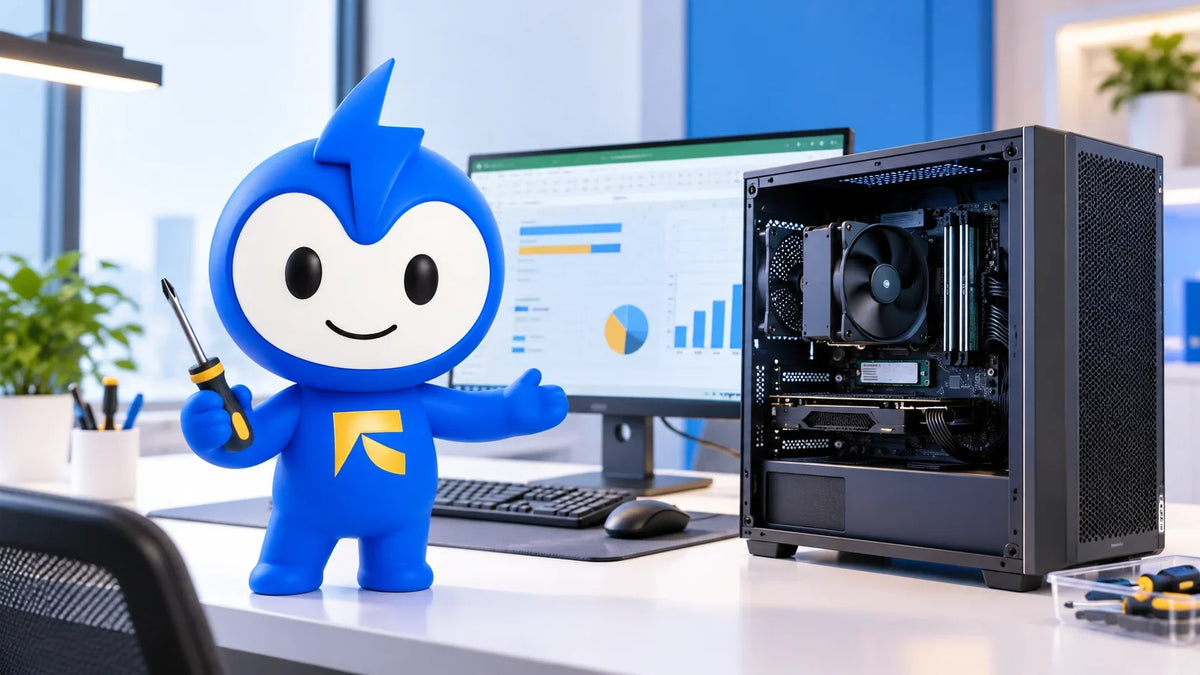
Your office PC doesn't need RGB fans or a graphics card that costs more than your rent. It needs to open spreadsheets fast and handle back-to-back Teams calls. And it has to keep running through a Sharjah summer without sounding like a jet engine.
That's the whole brief. This guide shows you how to build a PC for office work that does exactly that, without overspending on parts you'll never touch.
We'll also say the part most build guides skip: sometimes building isn't the smart move. We fix and sell computers out of Ajman every day, and plenty of offices are better off buying than building. By the end, you'll know which camp you're in. Stuck on a part choice halfway through? WhatsApp our technicians and ask.
Build, Buy New or Go Renewed?
Before anything goes in a cart, pick your route. The prebuilt vs custom office PC debate really has three options, not two.
Build it yourself. You choose every part, you know exactly what's inside, and upgrades are easy. The cost is your time. Troubleshooting is also on you, and each part carries its own separate warranty.
Buy new. One box, one warranty, zero assembly. You often pay for a brand name and for specs your team will never use.
Buy renewed. You get a business-grade machine that's been tested and reset, usually for less than new. Our renewed office desktops are a good example of the category.
Take the HP ProOne all-in-one we stock. It has a 10th Gen Core i5 with Intel UHD Graphics 630, 8GB of DDR4 memory, a 256GB NVMe SSD and a 23.8-inch Full HD screen. Memory is expandable to 64GB. It carries a one-year warranty and is listed at AED 1,349. That spec sheet maps almost line for line onto the build list below, with the monitor already included.
Not sure what "renewed" actually means? Our renewed vs refurbished breakdown clears it up.
Here's the quick rule. Build if you enjoy the process and want full control over every part. Buy if you need several identical machines quickly, or you'd rather spend Saturday at the beach than doing cable management.
Start With the Software, Not the Parts
A good PC for work build starts here. Most go wrong because people shop for parts first. Flip it. Start with what the machine has to run.
For Windows, Microsoft publishes the Windows 11 minimum requirements:
-
A compatible 64-bit processor with at least two cores at 1 GHz or faster
-
4GB of RAM and 64GB of storage
-
UEFI firmware with Secure Boot
-
TPM 2.0
-
DirectX 12-compatible graphics with a WDDM 2.0 driver
For Office, the Microsoft 365 system requirements ask for a two-core 1.6 GHz processor, 4GB of RAM, 4GB of free disk space and a 1280×768 display.
Treat those numbers as a floor, not a target. A PC that barely clears the minimum will drag once Outlook, a video call and a dozen browser tabs are open together. So write down the real workload first:
-
Light: email, documents, web apps
-
Medium: big spreadsheets, constant video calls, lots of apps open at once
-
Heavier: light photo editing or design work alongside the usual office stack
Your parts list follows from that.
Your Office PC Components List
CPU: Pick One With Integrated Graphics
The question we hear most is "do I need a graphics card for an office PC?" For most office work, no.
Intel's explainer on integrated vs discrete graphics lays out the trade-off. Integrated graphics are built into the processor and share system memory. They use less power and produce less heat. Discrete cards perform better, but they draw more power and run hotter.
In an Ajman office where the AC is already working overtime, less heat is a feature, not a compromise.
Choose a current mid-range processor and confirm on the spec sheet that it includes integrated graphics, because not every desktop chip does. Core and thread counts matter more than headline clock speed. They decide how well the CPU juggles several programs at once.
How Much RAM for an Office PC?
Lenovo's RAM sizing guide gives a clear scale:
-
8GB handles light office work and light multitasking.
-
16GB suits heavier office use and gives more consistent performance when multitasking.
-
32GB is for people who keep many applications open all the time.
Our take: if your day runs on Excel, Teams and a browser at the same time, go 16GB. Also leave a free memory slot, so a future upgrade means adding a stick rather than replacing both.
Storage: SSD First, Always
Put the operating system on an SSD. Lenovo's custom PC build guide recommends pairing an SSD for the system with a hard drive for files, and calls that combination cost-effective for office machines.
If your files already live in OneDrive or SharePoint, a single SSD may be all you need. 256GB is workable. 512GB is comfortable once updates, apps and cached files start piling up.
Motherboard: Check TPM 2.0 and Secure Boot First
This is the step people forget. Windows 11 needs TPM 2.0 and UEFI with Secure Boot, so confirm both on the board's spec page before you pay.
Then check the practical stuff:
-
Size: the board must match your case (ATX, Micro-ATX or Mini-ITX). Mini-ITX keeps things compact but leaves less room for upgrades.
-
Memory slots: count them, so you can add RAM later.
-
USB ports: make sure there are enough for your keyboard, mouse, webcam and dongles.
-
Display outputs: with no graphics card, your monitor plugs into the board's video outputs, so make sure they match your screen.
Power Supply, Case and Cooling
Size the power supply to cover all your parts, and pick one with 80 Plus efficiency certification. Without a discrete graphics card, an office build has no reason to carry a giant gaming-class unit.
For the case, look for dust filters and decent cable routing. For cooling, standard air cooling is cost-effective and reliable. Liquid cooling belongs in high-end rigs, not on a reception desk.
How to Build a PC for Office, Step by Step
Once the parts arrive, the assembly itself is straightforward:
-
Prep your space. Use a clear, hard surface and touch bare metal before handling parts, to discharge static.
-
Build the core outside the case. Seat the CPU, memory and M.2 SSD on the motherboard first. It's far easier than working inside the case.
-
Mount the board and connect power. Install the motherboard in the case, then connect the power supply cables.
-
Wire the front panel. Connect the power button, USB and audio headers, using the motherboard manual as your map.
-
First boot into BIOS. Check that the RAM and SSD are detected. Enable TPM and Secure Boot if they're off.
-
Install the software. Install Windows 11, then the chipset drivers, then Microsoft 365.
A word on BIOS updates: only flash firmware when the manufacturer's notes fix a problem you actually have, and never let the power cut mid-update.
We've seen how badly this goes. One customer, Khunaiz, had a laptop that "completely died after a BIOS update." Several local repair shops couldn't find the fault. We collected it the same night and repaired it.
Same principle on a desktop: if your fresh build won't power on or something dies after an update, book our desktop repair pickup. We collect from your home or office, fix it, and bring it back.
Set Up the Workstation Properly
A fast PC on a badly placed screen still gives you a stiff neck by Thursday. OSHA's monitor placement guidance keeps it simple:
-
Sit 20–40 inches (50–100 cm) from the screen.
-
Keep the top of the screen at or slightly below eye level.
-
Aim the centre of the screen 15–20 degrees below your eye line.
-
Position the monitor perpendicular to windows, to cut glare.
That last point matters in UAE offices with floor-to-ceiling glass and afternoon sun pouring in. Turn the desk, not your neck.
If you need a screen, our office monitors range includes LG 22-inch and 24-inch models at AED 250 and AED 290. Round out the desk from our computer accessories range.
Keep It Running in UAE Conditions
Dust Is the Silent Killer
Fine dust gets into everything here, and your PC's fans pull it straight inside.
Dell's cleaning and maintenance guide warns that dust clogs air vents and fan blades, which causes overheating. Dell recommends compressed air, not a vacuum, because vacuums create static. Shut the PC down and unplug it from both the computer and the wall before cleaning. The dust filters you picked for your case earn their keep here.
Power Management Pays You Back
The US Department of Energy's federal energy-efficiency guidance says:
-
Enabling power management can cut a computer's annual energy use by up to 27%.
-
An ENERGY STAR desktop uses 52 kWh a year, against 208 kWh for a less efficient model.
-
Shutting computers down at night and over weekends won't shorten their life.
Set sleep timers on day one and you'll never think about it again.
Back Up Like You Mean It
An office PC is only as good as the files on it. Follow the 3-2-1 backup rule: keep three copies of your data, on two different types of storage, with one copy kept off-site. Cloud sync plus an external SSD covers most small offices.
Still on Windows 10? Upgrade, Extend or Replace
If your current office machines run Windows 10, this matters. Microsoft ended Windows 10 support on October 14, 2025. Those PCs still work, but they no longer get security updates, which leaves them more exposed to viruses and malware.
Microsoft lays out three options:
-
Upgrade free to Windows 11 if the PC meets the hardware requirements and runs Windows 10 version 22H2.
-
Enrol in Consumer Extended Security Updates, which cover a Windows 10 device until October 12, 2027.
-
Replace the device with one that supports Windows 11.
Office matters too. Support for Office 2016 and 2019 ended on the same date. Microsoft 365 Apps on Windows 10 keep getting security updates until October 10, 2028.
Old hardware isn't automatically scrap, though. Mohamad brought us a very old HP Pavilion dv6 with a dead display, expecting bad news because parts are hard to find. We sourced the parts and fixed it at a price he called very reasonable.
If a machine truly can't run Windows 11, that's when building or buying renewed makes sense. Whoever you buy from, us included, ask the seller to confirm Windows 11 compatibility before you pay.
The Bottom Line
To build a PC for office work, start from the software and size each part to the job:
-
A mid-range CPU with integrated graphics
-
16GB of RAM for real multitasking
-
An SSD for the system
-
A motherboard with TPM 2.0 and Secure Boot
-
An efficient power supply and a case with dust filters
Then set the screen at the right height, schedule the dust clean, and back everything up.
And if assembling it yourself sounds like a lost weekend, a renewed desktop gets you the same spec with a screen and a warranty already attached. Either way, you can chat with a technician before you spend a dirham. One customer, Naufaan, had us come to his place and fix his laptop at 10pm. We'll happily answer a parts question at a more civilised hour.
FAQs
Can I build an office PC without a graphics card?
Yes. Choose a processor with integrated graphics and plug your monitor into the motherboard's video outputs. Integrated graphics use less power and produce less heat than a discrete card, which suits everyday office work.
How much RAM does an office PC need?
8GB covers light office work like email and documents. 16GB is the better fit for heavier use, such as large spreadsheets, video calls and many apps open at once. 32GB is for people who keep lots of applications running constantly.
What does a PC need to run Windows 11?
At minimum: a compatible 64-bit processor with two or more cores at 1 GHz, 4GB of RAM, 64GB of storage, UEFI with Secure Boot, TPM 2.0, and DirectX 12-compatible graphics. Check TPM 2.0 and Secure Boot support on the motherboard before buying.
Is it cheaper to build or buy a renewed office PC in the UAE?
It depends on the parts you choose. Add up your full build cost, including the monitor and a Windows licence, then compare it with a renewed machine. A renewed all-in-one like the HP ProOne 400 G6 (AED 1,349 at FixBuddy) includes the screen and a one-year warranty, which a parts list doesn't.
Is Windows 10 still safe for office use?
Windows 10 stopped receiving security updates on October 14, 2025, so unprotected PCs face higher malware risk. You can upgrade eligible machines to Windows 11 free, or enrol in Extended Security Updates, which run until October 12, 2027.
Share:
Can You Use an Office PC for Gaming? What Works and What Doesn't
Office PC Lifespan: How Often Should Office Computers Be Replaced?